다크 모드
Step 1: Gateway 생성 & Tool 등록 ⏱️ 10분 ★☆☆
● Step 1 Gateway○ Step 2 Agent○ Step 3 Runtime○ Step 4 Observability
이 Step의 목표
사전 배포된 Lambda 함수를 AgentCore Gateway에 MCP Tool로 등록합니다.
이후 Agent는 이 Gateway를 통해 Tool을 호출합니다.
scripts/setup-gateway.py
Gateway란?
기존 방식:  Agent → 직접 Lambda 호출 (하드코딩)
AgentCore: Agent → Gateway(MCP) → Lambda (자동 라우팅)
AgentCore Gateway는 Agent(MCP Client)가 보낸 MCP 요청(툴 목록 조회 List, 툴 호출 Invoke, 검색 Search)을 받아 뒤에 등록된 Target으로 라우팅하는 서비스입니다. Target은 크게 두 종류입니다 — 기존 OpenAPI 스키마 기반 RESTful API를 그대로 연결하는 API Endpoint Target, 그리고 이 워크샵에서 쓰는 AWS Lambda 함수를 연결하는 Lambda Target. Gateway가 Target 뒤의 실제 API/함수 각각을 MCP Tool 하나씩으로 자동 변환해주기 때문에, Agent는 Gateway URL 하나만 알면 여러 Tool에 동시에 접근할 수 있습니다.
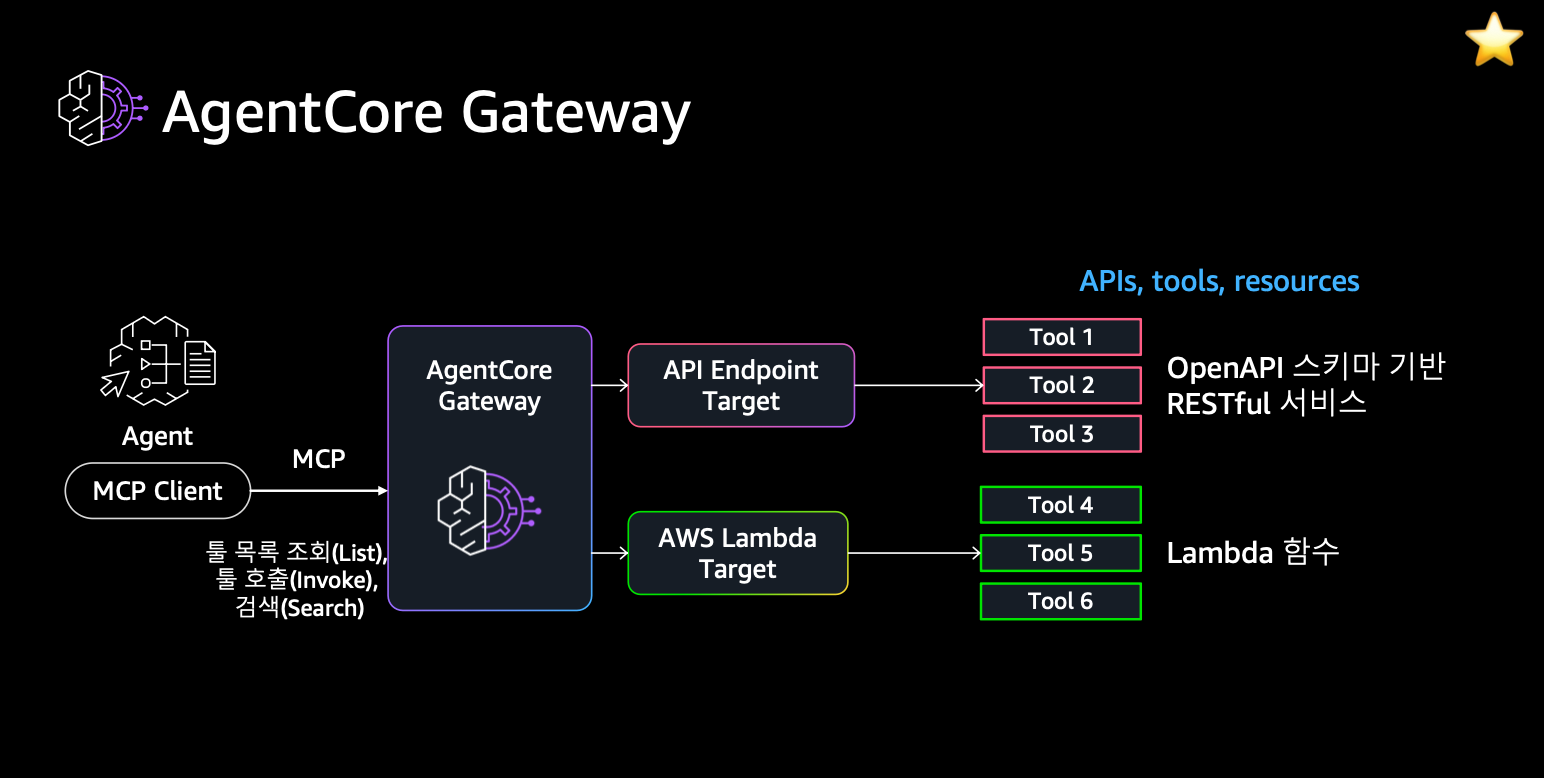
이 워크샵에서는 Lambda Target 경로를 사용합니다: customer-profile, product-search, purchase-history 3개 Lambda 함수를 Gateway에 등록하면, 각각이 Tool 4·5·6처럼 독립된 MCP Tool로 노출됩니다.
Gateway의 가치:
- Agent 코드에 Lambda ARN을 하드코딩하지 않음
- Tool 추가/변경 시 Agent 재배포 불필요
- MCP 프로토콜로 표준화된 Tool 호출
- 인증/인가를 Gateway 레벨에서 처리
1-1. Gateway 생성 스크립트 실행
bash
cd ~/workshop/starter-code
python3.12 scripts/setup-gateway.py
🧪 스크립트가 하는 일 (내부)
python
# 1. Gateway 생성
client.create_gateway(
    name="rcg-workshop-gw-XXXX",
    protocolType="MCP",
    roleArn=ROLE_ARN,
)

# 2. Lambda를 Gateway Target으로 등록
client.create_gateway_target(
    gatewayIdentifier=gateway_id,
    name="customer-profile",
    targetConfiguration={
        "mcp": {
            "lambda": {
                "lambdaArn": lambda_arn,
                "toolSchema": {"inlinePayload": tool_schema}
            }
        }
    },
)
1-2. 결과 확인
스크립트가 출력하는 정보를 확인하세요:
🎉 Gateway 설정 완료!
   Gateway ID:  gw-abc123def456
   Gateway URL: https://gw-abc123def456.gateway.agentcore.us-west-2.amazonaws.com

   export AGENTCORE_GATEWAY_URL=https://gw-abc123...
환경변수 설정 필수
bash
export AGENTCORE_GATEWAY_URL=<위에서 출력된 URL>
export GATEWAY_ID=<위에서 출력된 URL>
1-3. Tool 등록 확인
bash
aws bedrock-agentcore-control list-gateway-targets \
  --gateway-identifier "$GATEWAY_ID" \
  --query 'items[].[name, status]' --output table
✅ 정상 출력
----------------------------
|   ListGatewayTargets     |
+------------------+-------+
|  customer-profile | READY |
|  product-search   | READY |
|  purchase-history | READY |
+------------------+-------+
READY 상태 확인
Status가 CREATING이면 30초 정도 기다린 후 다시 확인하세요. (일부 환경에서 ACTIVE로 표시될 수도 있습니다 — 둘 다 정상입니다)
1-4. 우리가 만든 것 확인하기
Console에서 확인
AWS Console에서 방금 생성한 Gateway를 확인해봅니다:
Console → Amazon Bedrock → AgentCore → Gateways →
rcg-workshop-gw-XXXX클릭
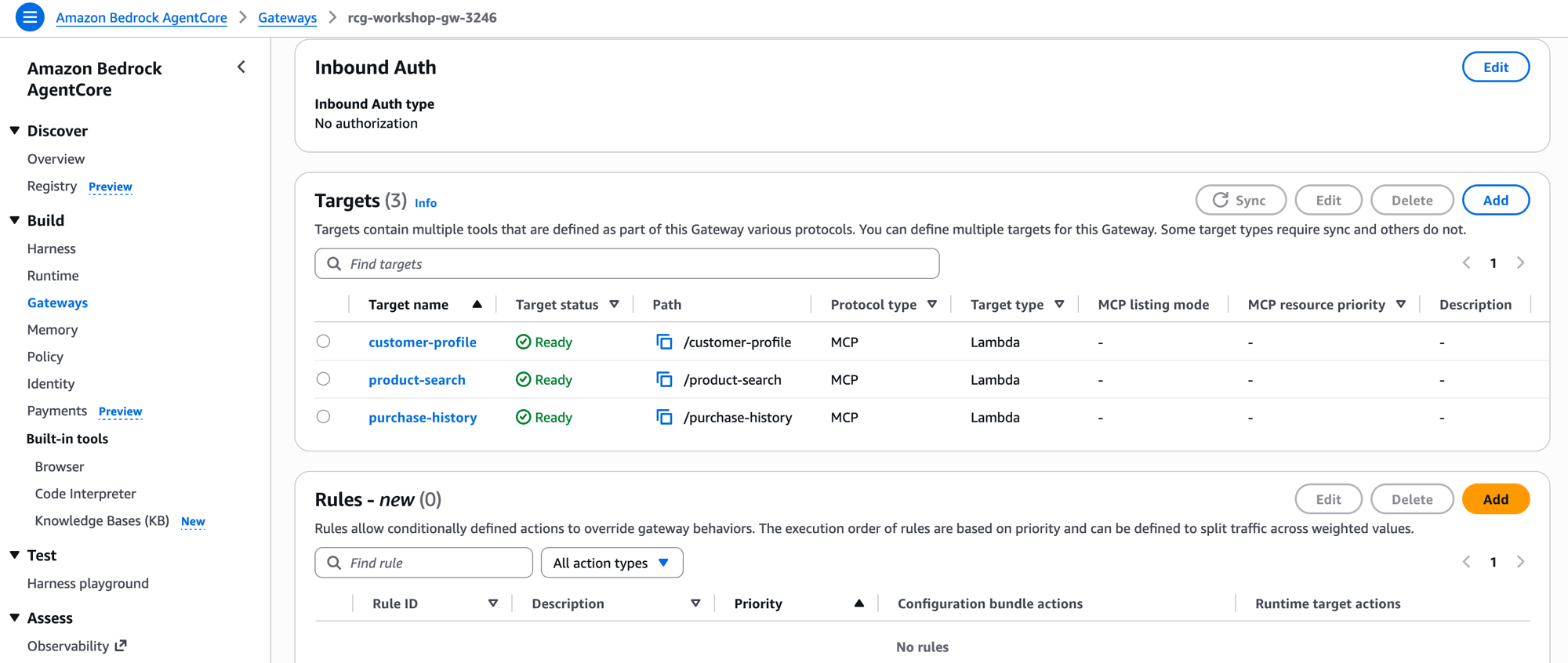
3개 Target이 모두 Ready 상태이면 정상입니다.
지금까지 만든 것의 의미
방금 여러분은 Lambda 함수 3개를 MCP 프로토콜의 Tool로 변환했습니다. 이게 왜 중요할까요?
| 비교 | 하드코딩 방식 | Gateway 방식 (우리가 만든 것) |
|---|---|---|
| Tool 추가 | Agent 코드 수정 + 재배포 | Gateway에 Target 추가만 |
| Agent가 아는 것 | Lambda ARN 직접 알아야 함 | Gateway URL 1개만 알면 됨 |
| Tool 설명 | 코드에 주석으로 관리 | Schema의 description으로 표준화 |
| 인증 | 각 Lambda별 권한 설정 | Gateway가 일괄 처리 |
Agent가 보는 Tool Schema
Agent(LLM)는 Lambda가 뭔지 모릅니다. 오직 Tool Schema의 description만 읽고 판단합니다:
| Tool 이름 | Agent가 읽는 설명 | 파라미터 |
|---|---|---|
customer_profile | "고객 ID로 프로필(이름, 등급, 선호도, 알러지) 조회" | customer_id (string) |
product_search | "카테고리와 태그로 상품 검색. 재고 있는 상품만 반환" | category, tags (string) |
purchase_history | "고객의 최근 구매 이력 조회. 중복 추천 방지용" | customer_id (string) |
Tool Schema의 description = Agent의 판단 기준
Agent(LLM)는 사용자 질문을 받으면 이 description을 읽고 어떤 Tool을 어떤 순서로 호출할지 스스로 결정합니다.
예: "견과류 알러지가 있는 고객에게 추천해줘"
→ Agent 판단: "알러지 확인이 필요하니 customer_profile을 먼저 호출하자"
description이 모호하면 Agent가 잘못된 시점에 호출합니다. 이것이 Prompt Engineering 못지않게 중요한 Tool Schema Engineering입니다.
Tool Schema = Agent의 "설명서"
Console에서 Target을 클릭하면 inline schema를 확인할 수 있습니다:
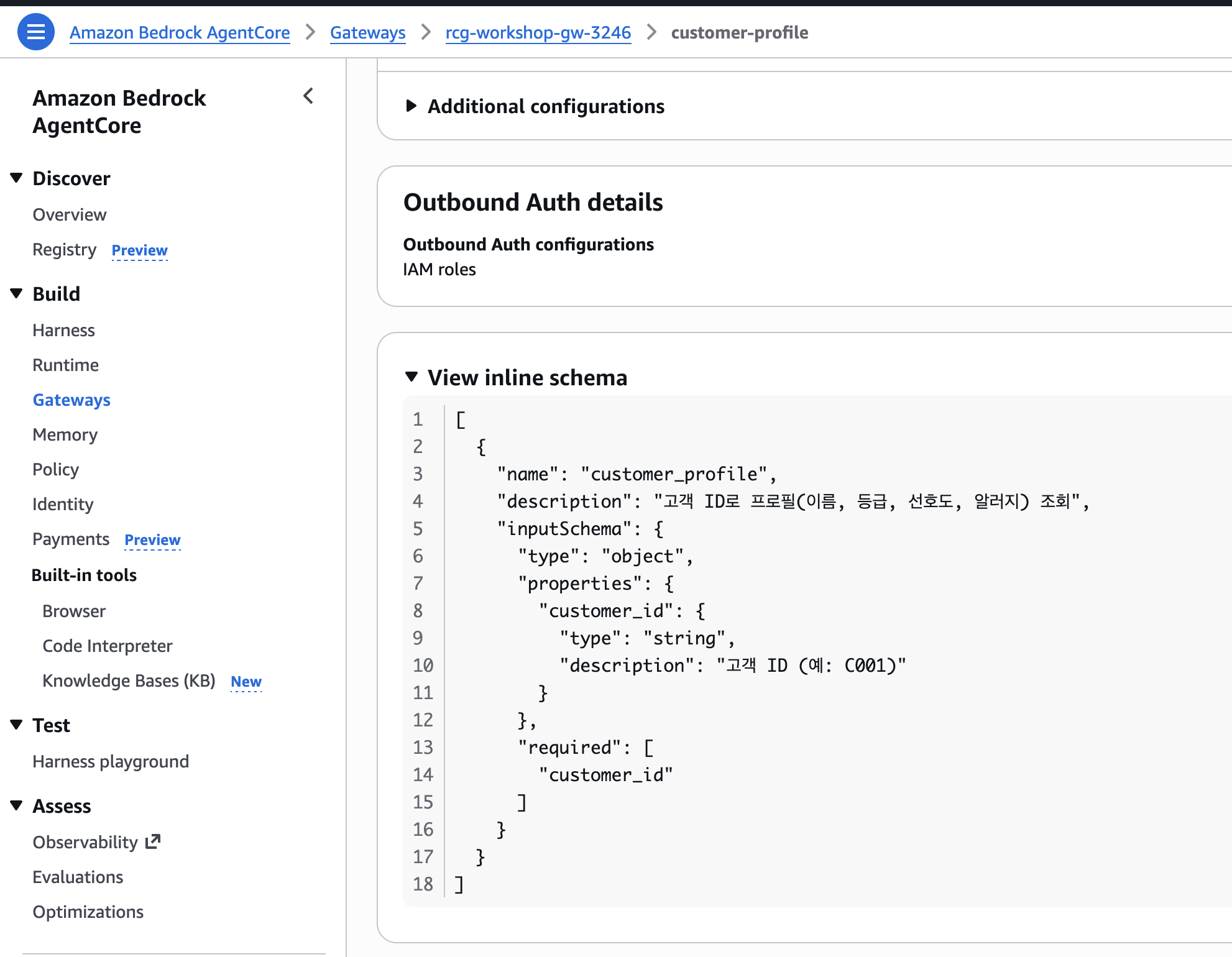
이 JSON이 Agent(LLM)가 실제로 읽는 전부입니다:
json
{
  "name": "customer_profile",
  "description": "고객 ID로 프로필(이름, 등급, 선호도, 알러지) 조회",
  "inputSchema": {
    "properties": {
      "customer_id": {
        "type": "string",
        "description": "고객 ID (예: C001)"
      }
    }
  }
}
description이 Agent 성능을 결정합니다
Agent(LLM)는 Lambda 코드를 볼 수 없습니다. 오직 description만 읽고 이 Tool을 언제 호출할지 판단합니다.
| description 품질 | Agent 행동 |
|---|---|
| "고객 프로필 조회" (모호) | 언제 호출할지 헷갈림 → 불필요한 호출 증가 |
| "고객 ID로 프로필(알러지, 선호도) 조회" (구체적) | 알러지 질문이 오면 즉시 호출 |
이것이 Prompt Engineering 못지않게 중요한 Tool Schema Engineering입니다.
Step 1 요약: 우리가 완성한 것
AgentCore Gateway (rcg-workshop-gw-XXXX)
customer-profile
Lambda → MCP Tool
Lambda → MCP Tool
product-search
Lambda → MCP Tool
Lambda → MCP Tool
purchase-history
Lambda → MCP Tool
Lambda → MCP Tool
⬆️ Agent는 Gateway URL 1개로 3개 Tool 모두 접근
(Agent 코드에 Lambda ARN 없음!)
- [x] Gateway = Lambda를 MCP Tool로 변환하는 라우터
- [x] Tool Schema = Agent에게 "이 Tool은 이렇게 쓰는 것"을 알려주는 설명서
- [x] Agent는 Gateway URL만 알면 됨 (Lambda ARN 몰라도 됨)
✅ 다음
Gateway 준비 완료! 이제 이 Gateway를 사용하는 Agent의 두뇌를 만듭니다. → Step 2: Agent 코드 작성